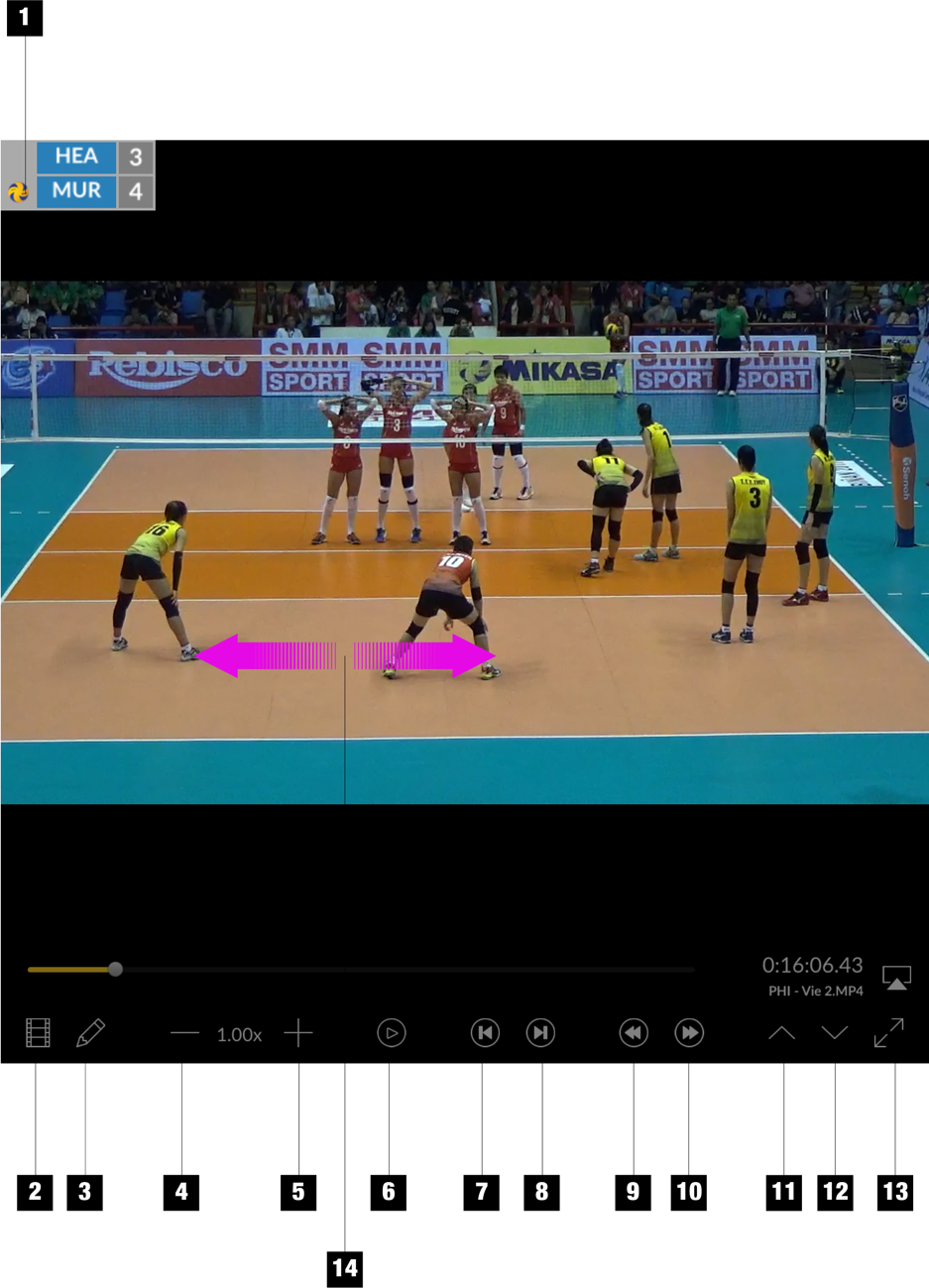
- Match score
- Assign match video
- Draw annotations on video
- Slower play back speed
- Faster play back speed
- Toggle Play/Pause
- Back one frame
- Forward one frame
- Back one second
- Forward one second
- Show previous event
- Show next event
- Do full screen
- Scrub left/right on the video to scroll video back/forward. The faster the scrubbing, the faster the scrolling
Tip: Tapping on the video to toggle play and pause
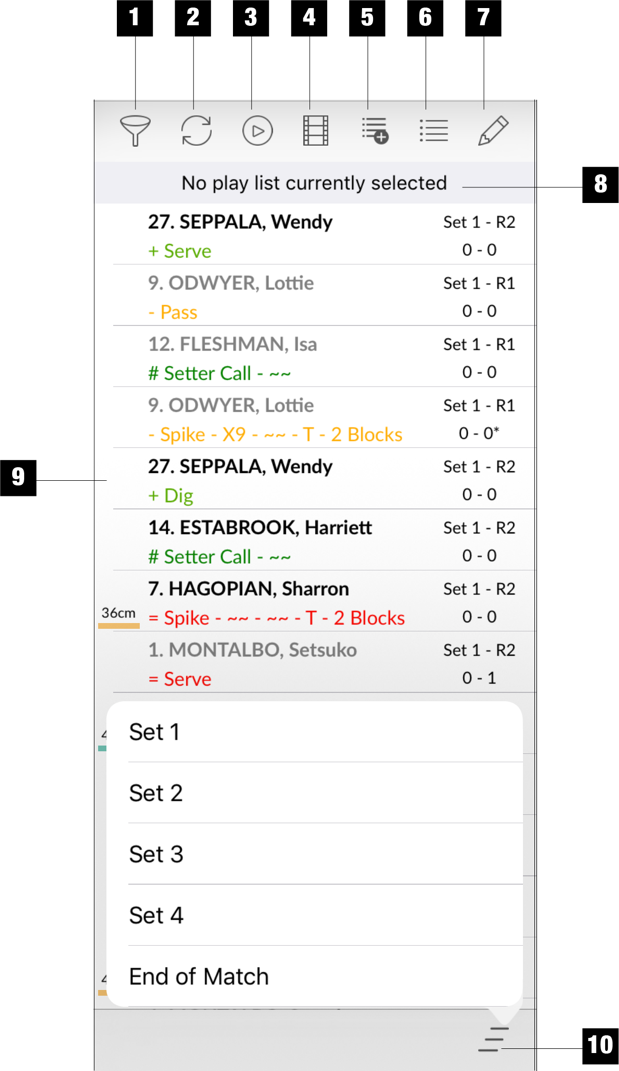
The Event List
|
|
Jump measurement can be set to show in inches or centimetres in Settings. Landing impact is colour coded – Green for good landing, Yellow for average landing and Red is not so good.
|
The Event Filters Screen
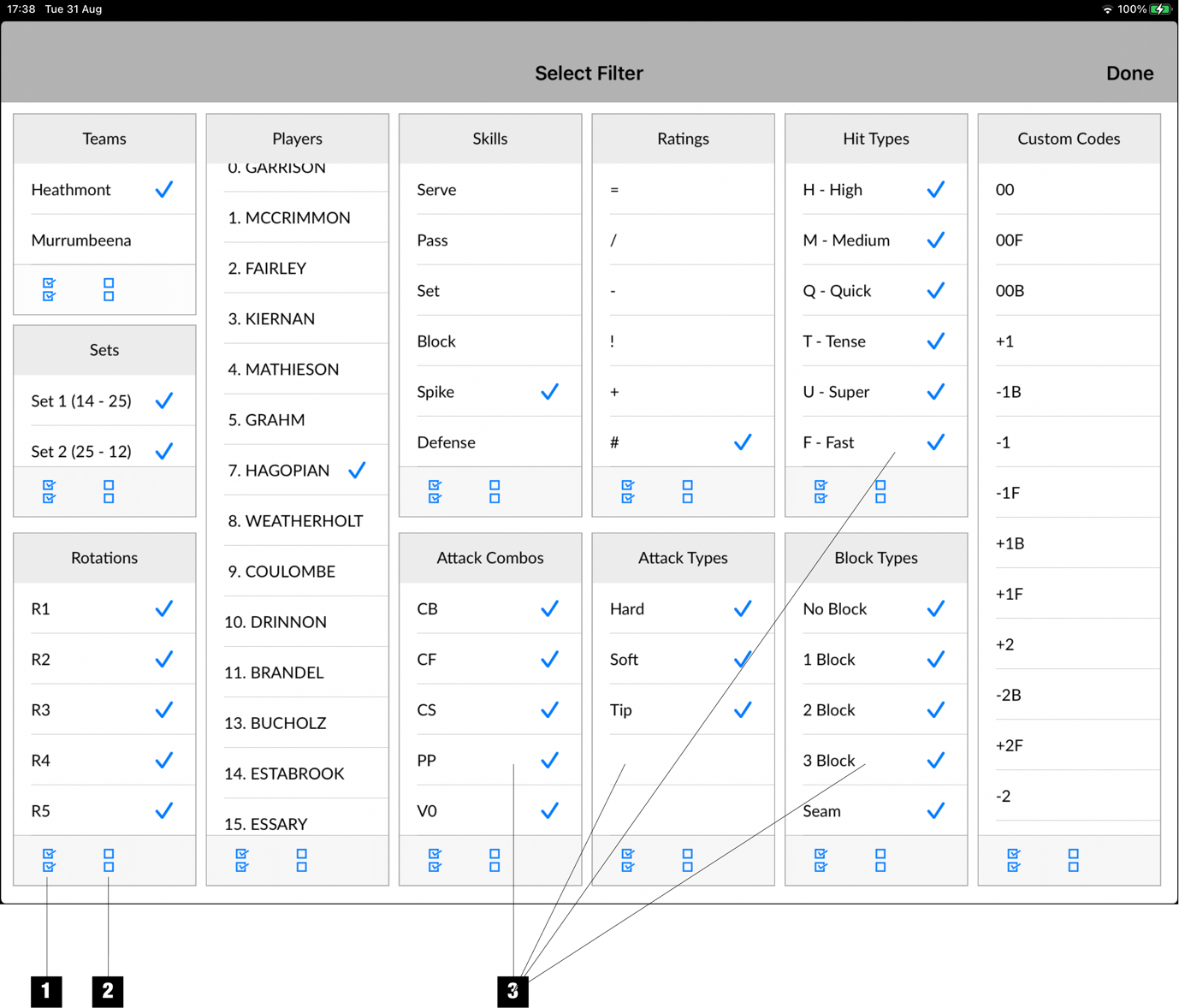
- Select all options
- Unselect all options
- Options differ based on selected skill
Generate video from events
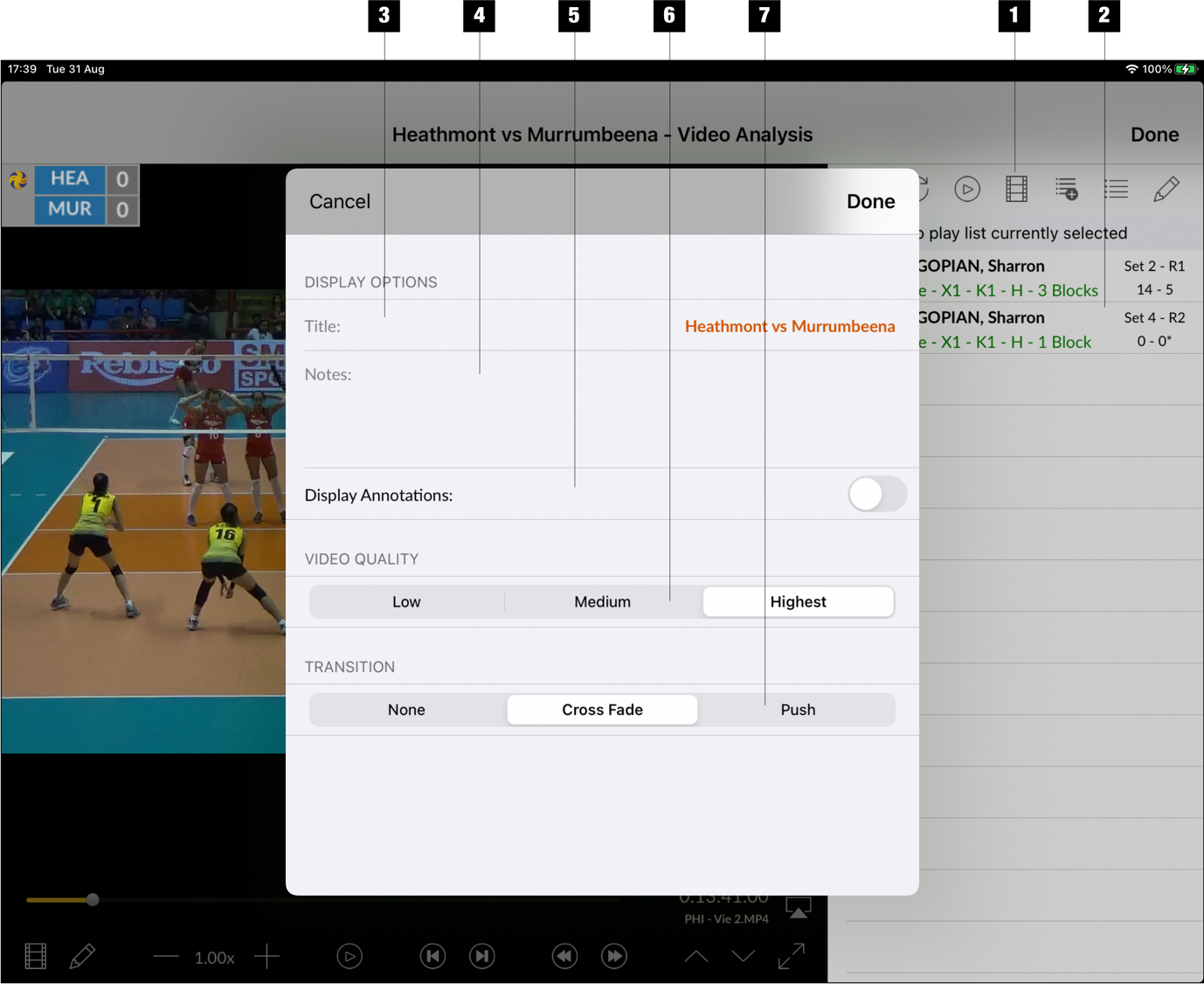
- Generate a video of all events on the list
- List of events
- Video title, this appears on the 3 seconds introduction of the video
- Notes, also appears on the video introduction
- Option to display any annotations on the generated video
- Select video quality
- Select transition between events
Once the video is generated it is shown and the user has the option to save it to the Camera Roll, the app's Documents folder or to both locations.
Edit event detail
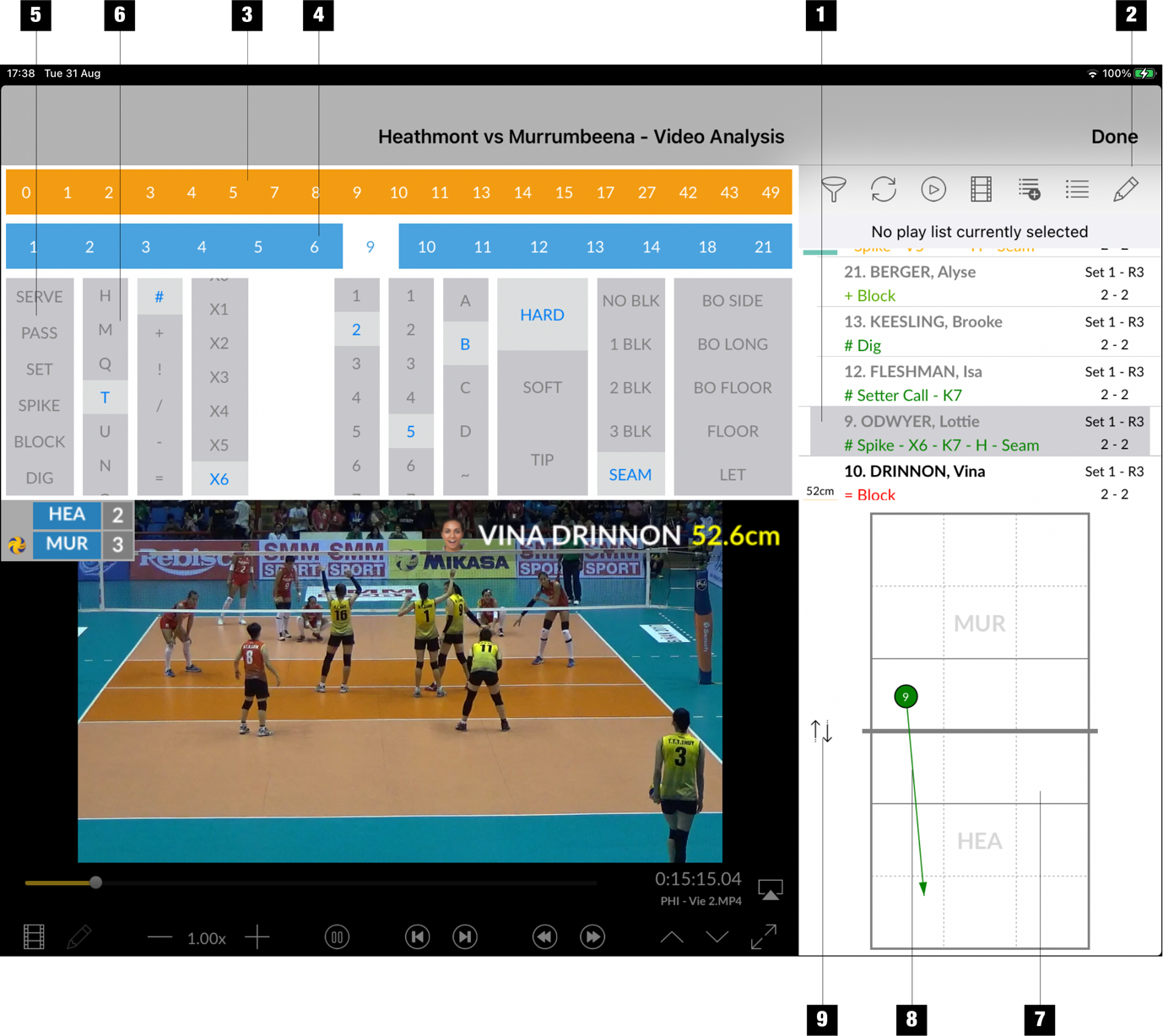
- Select the event to be edited
- Tap Edit Event button
- Team A players
- Team B players
- List of skills
- Lists of options is context sensitive depends on the skill selected
- Court view where the user can adjust ball co-ordinates
- Ball path
- Flip court upside down
- Tap Done when finish
Edit event timing
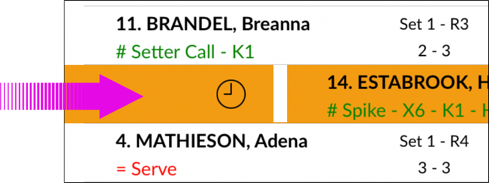
Swipe the event to be adjusted from left to right to enter event timing mode.
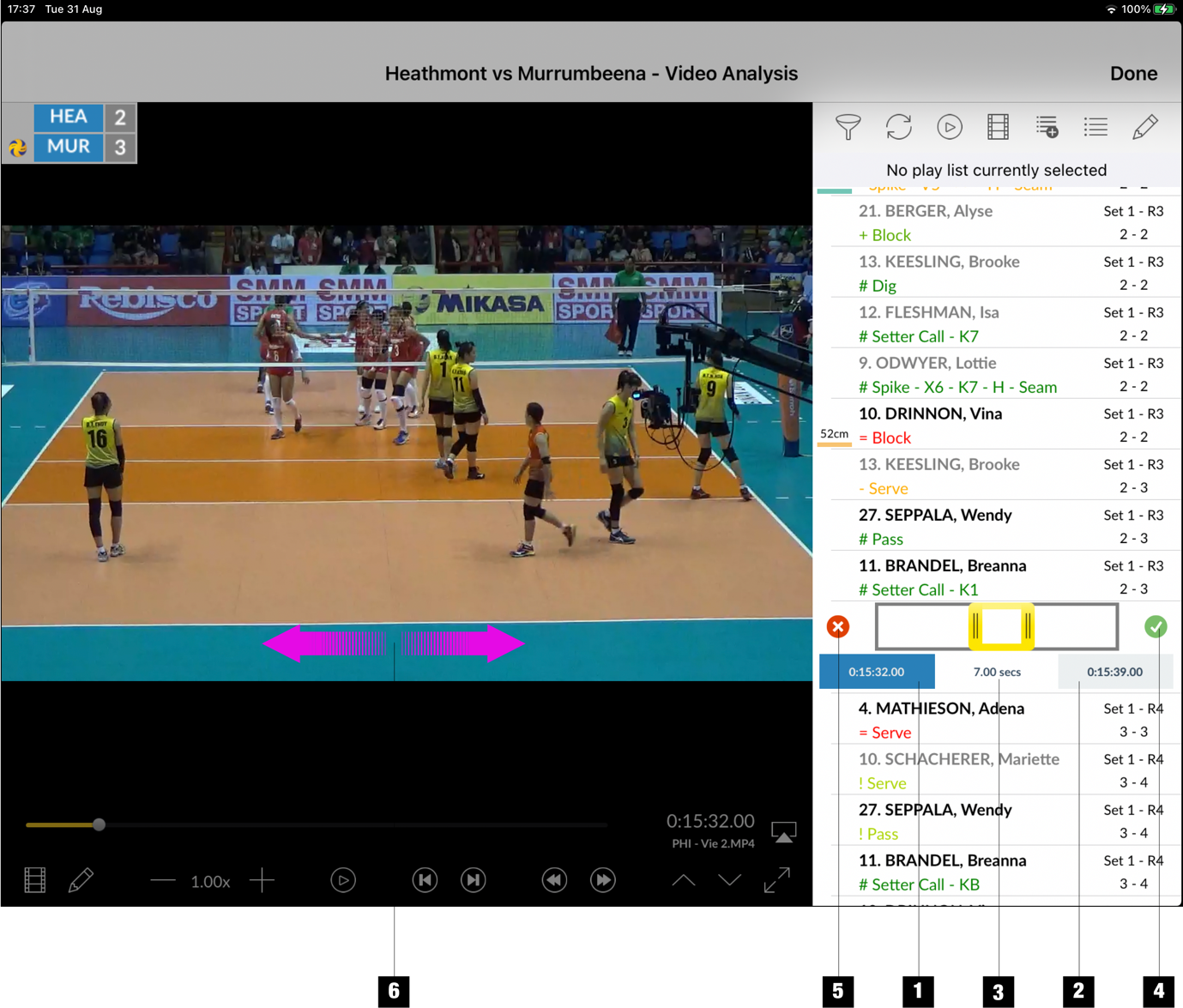
- Event start time button
- Event end time button
- Duration
- Save timing
- Cancel all changes
- Scrub on video to scroll back and forward
Tap on event start button (1) and scroll video to the correct position. Tap on event end button (2) and move to the end of the clip. Tap tick button (4) to save or cancel button (5) to back out.
Add events to play lists
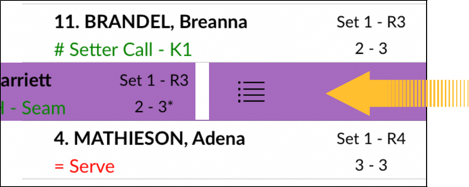
Swipe the event to be added from right to left to add to the current play list. If there is no play list selected, then you will be asked to select one.
|
|
|