Files Management
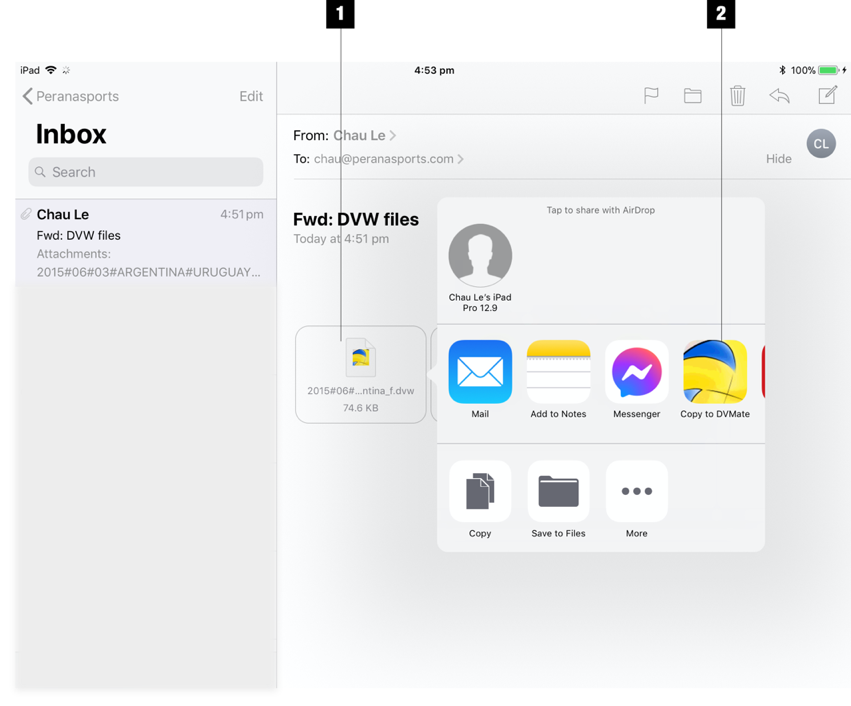
DVW Files can be imported into DVMate by the Import DVW Files button on the Match Screen. They can also be imported as attachments in email messages in the iPad Mail app.
Import DVW Files from Mail
|
|
Import DVW Files by AirDrop in iOS
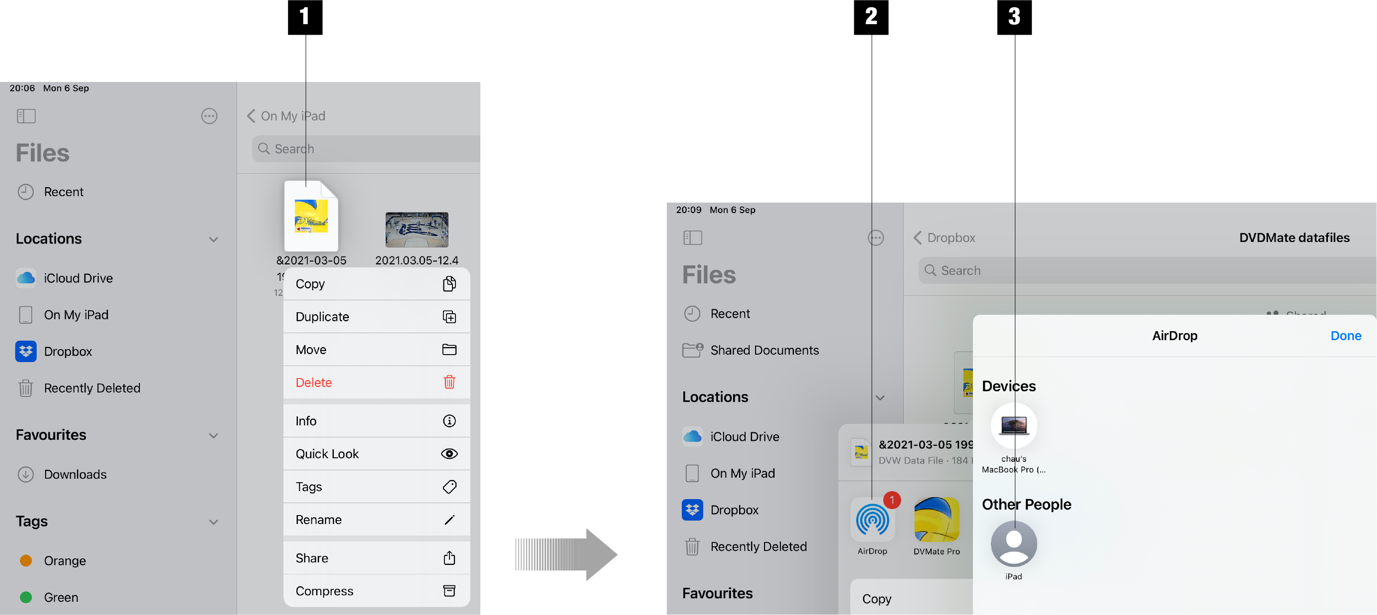
- Select DVW file
- Tap AirDrop button
- Select iPad to send DVW file to
Import DVW Files by AirDrop in MacOS
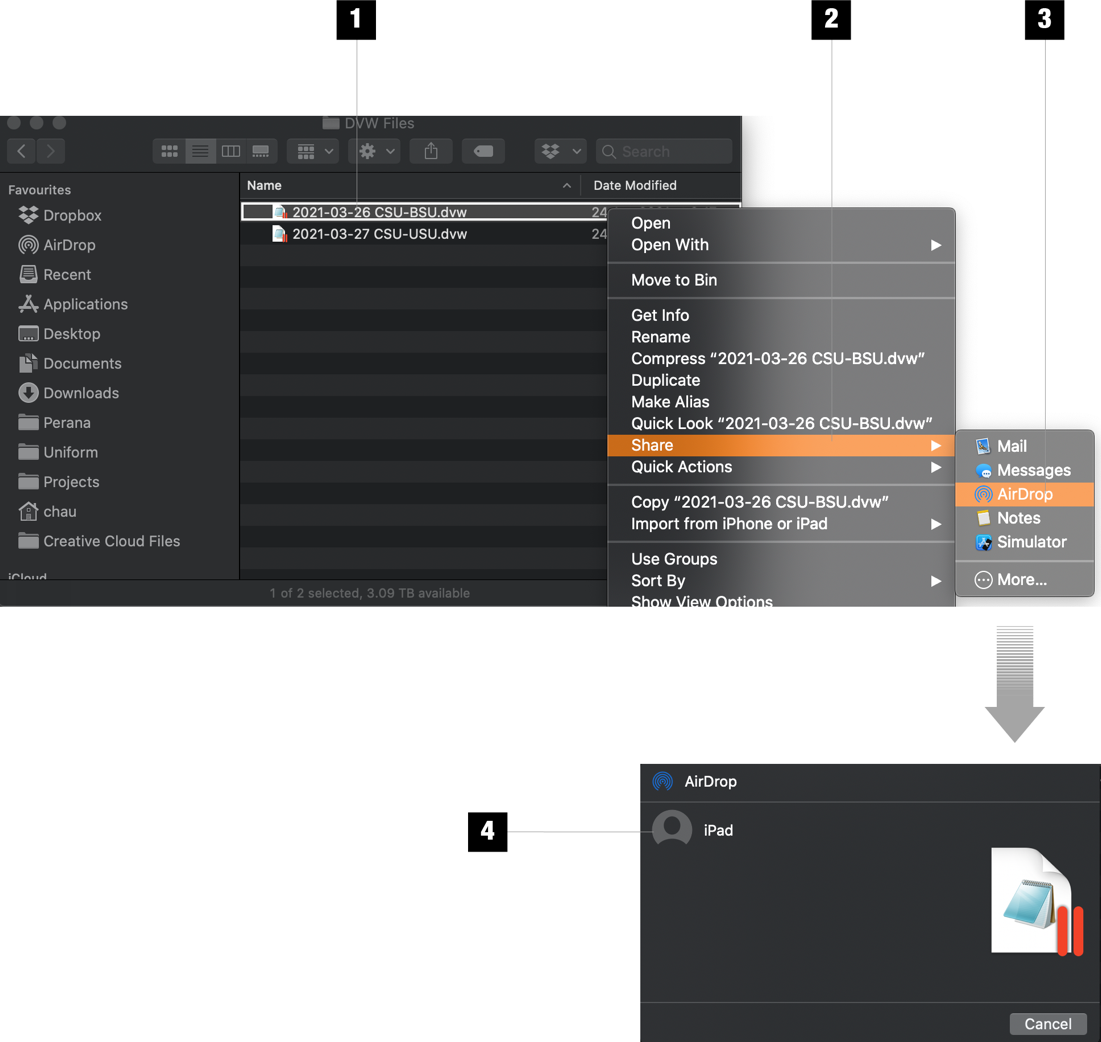
- Right click on DVW file
- In popped up menu select Share
- Select AirDrop
- In AirDrop window, select the iPad to send DVW file to. DVW on the selected iPad will import the file automatically to its database
Copy Files to DVMate Documents Folder using Files App
|
|
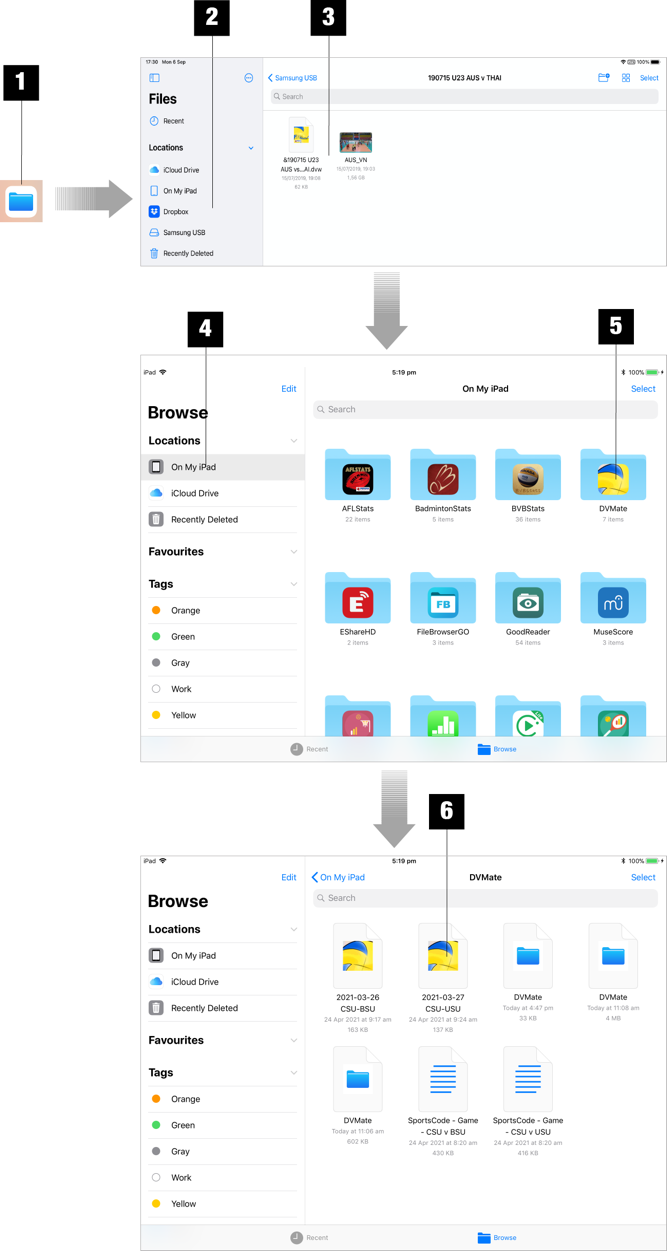
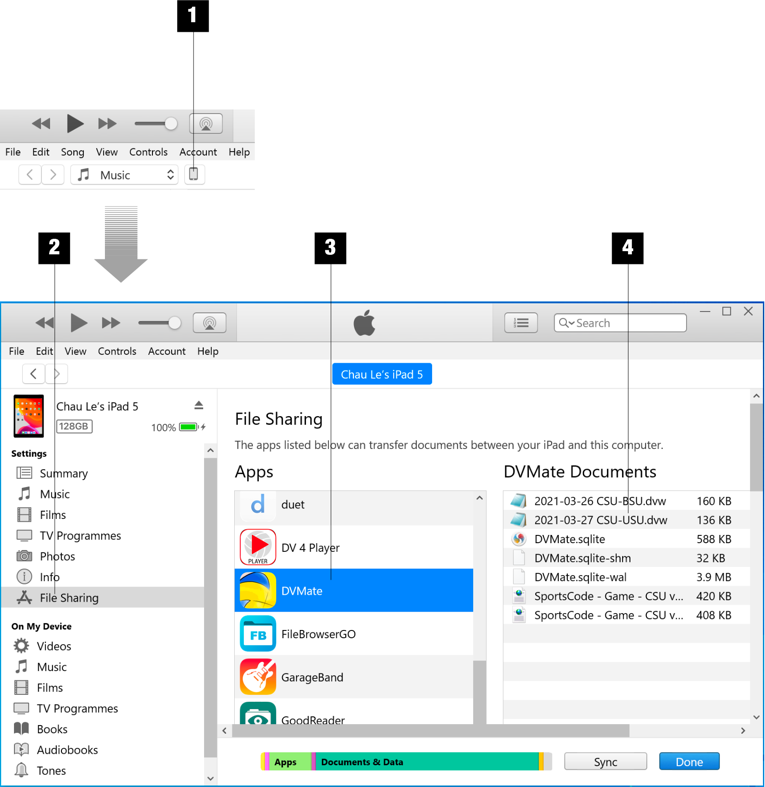
Match videos and VERT data files can be imported in to DVMate Documents folder for use within the app. You can use the Files app on the iPad to import files that are on accessible by the iPad but if these files are stored on a computer, then they can be imported as follow.
Import Files via File Sharing – Windows iTunes
|
Attach the iPad to a Windows PC and run iTunes
|
Import Files via File Sharing – MacOS Finder
|
|
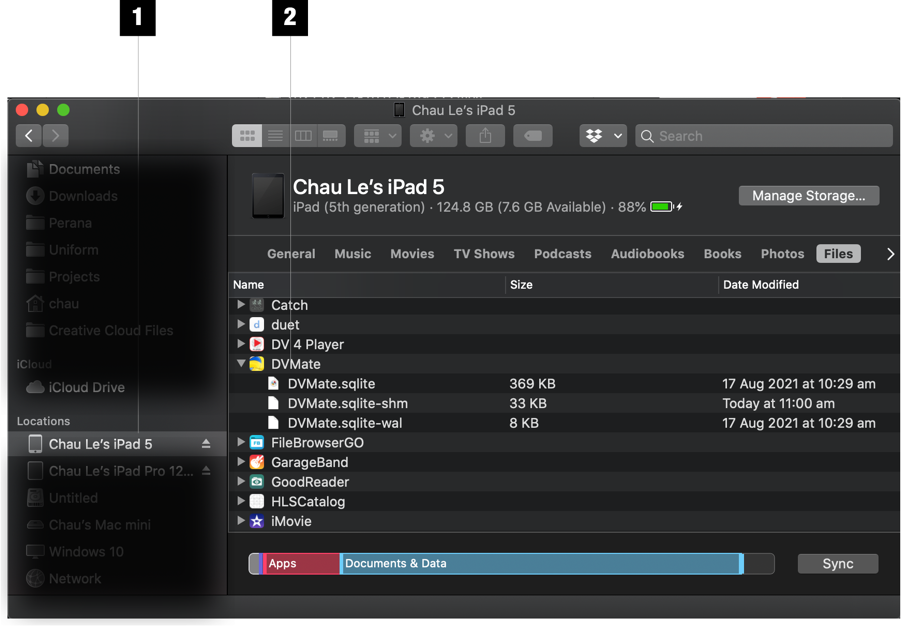
Apple provides no progress feedback when you are transferring a large file like a match video. You can test by trying to collapse the folder. If there is no response, then the file is still being transferred. Once the transfer is completed you will see it’s listed in the folder.